Estimate Tab
The estimate tab is where you will begin the process of putting together an estimate for your client.
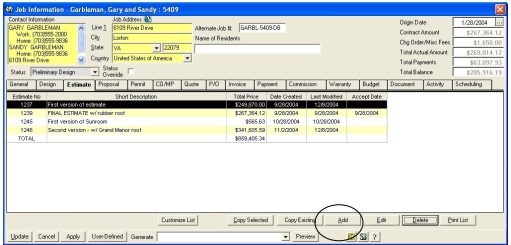
- Click on the Estimate Tab of a job
- There are 2 ways to create an Estimate. You can copy from and existing estimate or you can add a new estimate. See Copying an Existing Estimate near the end of this section.
- Click on Add to add a new estimate
A New Estimate form will appear. Be sure that you are using your company's appropriate markup and labor rates. The rates that appear are the default rates set up in your company configuration. (See Setting up Company Info.) Making a change on this screen will affect this estimate only.
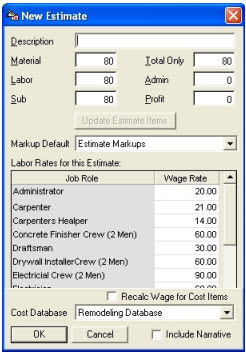
Fill in the fields
- Description - Type a generic description of the project (Ex: kitchen, bathroom, etc.)
- Material - This is the amount of markup you charge for Material. This charge is set in your Company Configuration but it can be changed at the job level. If you would like to change your Material markup for this job, this is where you change it.
- Labor -This is the amount of markup you charge for Labor. This charge is set in your Company Configuration but it can be changed at the job level. If you would like to change your Labor markup for this job, this is where you change it.
- Sub -This is the amount of markup you charge for Subcontractors. This charge is set in your Company Configuration but it can be changed at the job level. If you would like to change your Subcontractor markup for this job, this is where you change it.
- Total - This is the amount of markup you charge for charges listed in the Total column. This charge is set in your Company Configuration but it can be changed at the job level. Note: This column affects the Total column of your estimating database only.
- Admin -If you charge administrative fees, enter your fees here. This is at the job level, so it will only apply to this job.
- Profit - This is where additional profit can be charged above and beyond markups. This in commonly used in insurance estimating.
- Mark Up Default - Click on the drop down to choose how you would like your Mark Ups to default.
- Job Role/Wage Rate - Wage rates for job roles (trade positions) have been set up in your Company Config based on your area labor rates. If you know you need to charge more or less on this specific job, you can change the rate here. Simply click on the box and change the rate which will be used for scheduling purposes. This will not affect what you charge your customer.
- Recalc Wage for Cost Items - If this box is checked the revised wage rates will be used for scheduling purposes.
- Cost Database - RBS allows you to choose which database you would like your estimate items to come from. Click the drop down and choose a Cost Database.
Once these fields are filled in, click on OK.
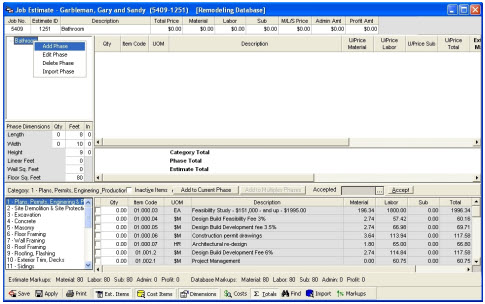
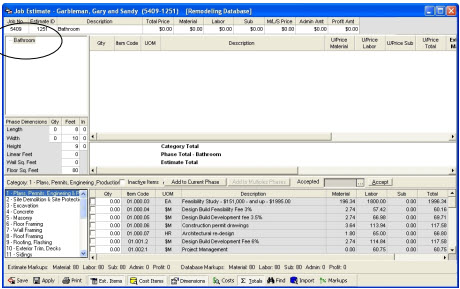
An Estimate Phase form will appear. Choose an Estimate Phase by clicking on the drop down arrow in the first field or type a new phase and click the Add button to add a new Phase type. The box labeled
Description is where you can type a longer description if you need to be more detailed.
You can also enter dimensions of the room at this point. We recommend you verify the quantity calculated as the software does not have the ability to allow for unusual situations.