Setting Up Contacts
The contact list is a combination of employees, clients, vendor contacts etc. Any “person” record in RBS is a contact.
Contact lists can be used to generate mailing lists.
When you create a new job, the client information will automatically be added to the contact list. You do not need to enter it twice.
The same goes for an employee, once a data is entered as an employee the information will automatically be added to contact list.
You can directly access/create a contact usinf the Contact screen.
Follow these steps to enter a Contact into RBS.
Click on the Contact button or on List\Contacts menu item

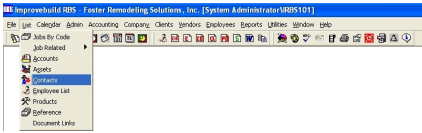
A Contact Search form will be displayed.
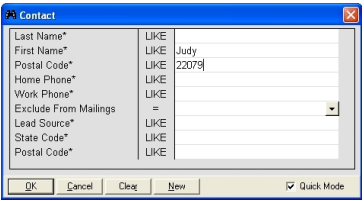
Enter the search criteria to locate/find existing record(s).
Search results form will be displayed.

Double-click on a record on the list to open the record in the detail form. Optionally, do a right-mouse click on the form to display the popup menu
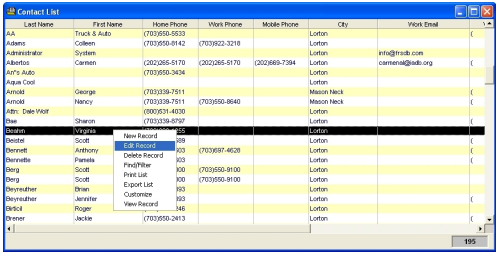
Select the desired menu option.
New Record - add a contact record
Edit Record - Edit an existing selected contact record
Delete Record - Delete an exising selected record
Find\Filter - Find a select list of records
Print List - Print displayed list
Export List - Export displayed list
Customize - Customize list
View Record - Open record to view
View\Edit existing record
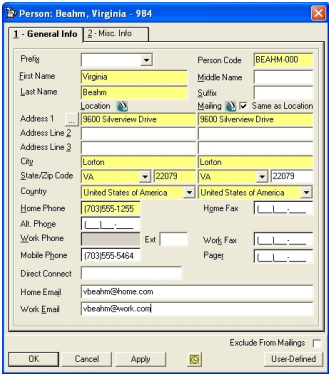
Create a new CONTACT record
Click on NEW to create a new contact record. A contact detail form will be displayed.
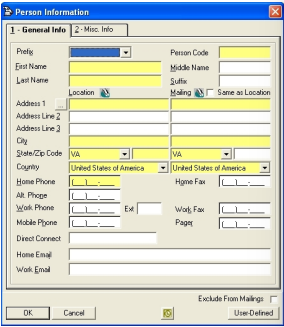
Enter all the required information (yellow) and any optional fields.
Click on the Misc Info tab to enter additional data.
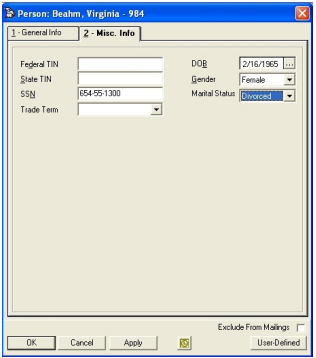
Click on the APPLY button to save and remain on the form, or click on the OK button to save and exit the form.
Send existing record to OUTLOOK
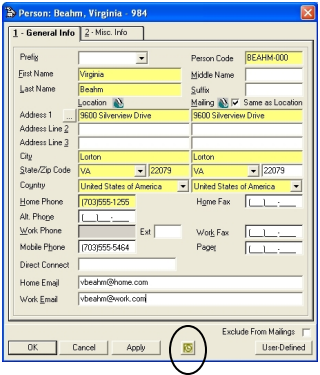
This will creat a record in Microsoft Outlook.