User Preferences
Preferences is a function that enables the User to control how they view RBS. There are several
functions you can turn on or off. One of the features is descriptive text on the icons of the toolbar.
You can view the toolbar in 2 different ways. You can view it with or without the text next to the
icon. In the beginning we recommend that you use the option with the text
From the main menu in RBS click on File > Preferences
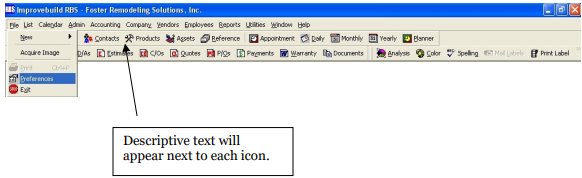
The User Preferences screen will appear
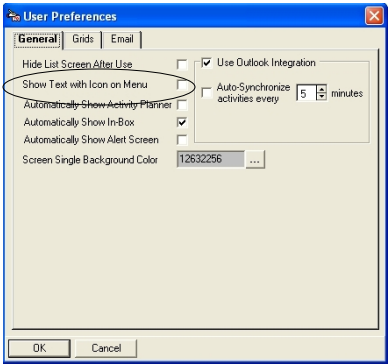
Unclick the box that says “Show Text with Icon on Menu” and click OK - When you return to the main screen the icons will appear without text

GENERAL Tab
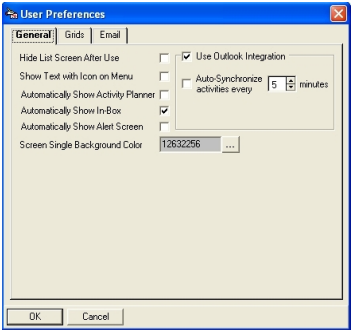
Hide List Screen After Use: When you do a search the search screen remains in the background until you close it. If this box is checked all search boxes will be hidden.
Show Text with Icon on Menu: Click here if you would like the text to appear on your icons on the toolbar in RBS.
Automatically Show Planner: If this box is checked the Planner will appear each time you sign into RBS. Un-check this box if you do not want to see this on start up.
Automatically Show In-Box: If this box is checked the In-Box will appear each time you sign into RBS. Un-check this box if you do not want to see this on start up.
Automatically Show Alert Screen: If this box is checked the Alert box will appear each time you sign into RBS. Un-check this box if you do not want to
GRID Tab
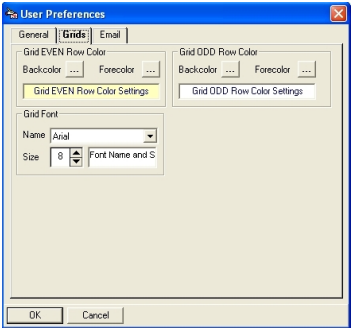
Grid EVEN Row Color: You can change the color of the EVEN numbered rows for easier viewing.
Grid ODD Row Color: You can change the color of the ODD numbered rows for easier viewing.
Grid Font: You can change the font and size of the font.
EMAIL Tab
This setting will allow you to e-mail documents out of RBS. You will need to contact your network
administrator to get your POP and SMTP settings. Once they are set up you can e-mail directly
from RBS
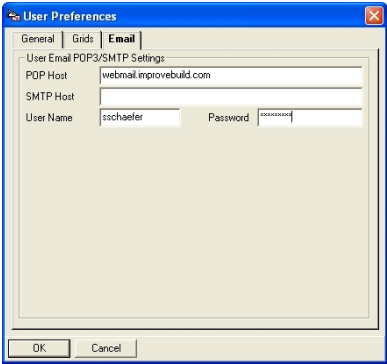
POP Host: Enter your POP Host setting
SMTP Host: Enter your SMTP Host setting
User Name: Enter your Email User Name
Password: Enter your Password