Setting Up Group Functions
This function gives you the ability to control what each Group does within the program.
For example: You may not want your receptionist to have the ability to enter an estimate so you can turn that function off for the receptionist. You will need to decide what functions you want each user to have the ability to do within your company.
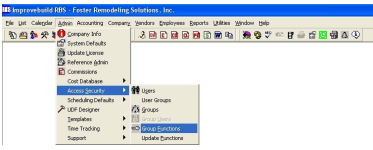
To set up Group Functions you will need to: 1. From the main toolbar in RBS, click on Admin>Access Security>Group Functions
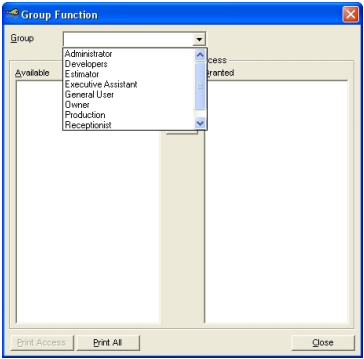
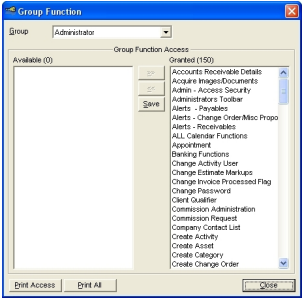
A Group form will be displayed. Select the Group from the dropdown to see the available and granted functions for each group
All of the functions available will appear on the left hand side of the screen in the “Available” panel.
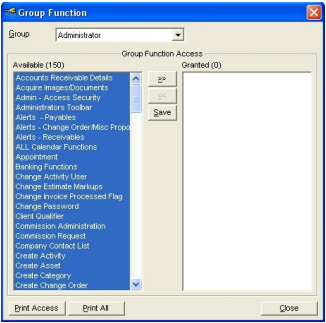
In most cases, you will want to give your Administrator the “rights” to do everything so there will always be someone who can make changes.
To do this, simply:
a. Click on the first entry in the “Available” box
b. Hold the Shift button down
c. Scroll down to the bottom of the list
d. Click on the last item on the list (continue to hold the Shift button) and all items will be highlighted
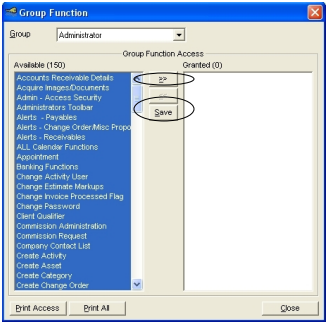
e. Click on the >> arrows in the center column
f. All functions will be moved to the right hand box, the “Granted” box. This will grant the user the ability to perform these functions.
g. Click on Save in the center column to save these changes.
Select another group and selectively add the function that the selected group can perform.
Click on the SAVE button to save the group functions.
Click on the CLOSE button to exit the form.