Inbox
RBS has an inbox feature which allows you to quickly access the jobs you most commonly work on. RBS’s inbox does not have anything to do with e-mail. This is simply a box which holds job records.
This inbox can be configured to appear in the main screen of RBS. You can turn this feature on or off.
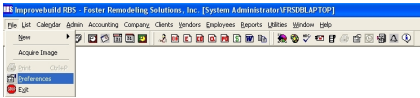
Use the File\Preferences menu item to enable or disable the automatic display of the In-Box.
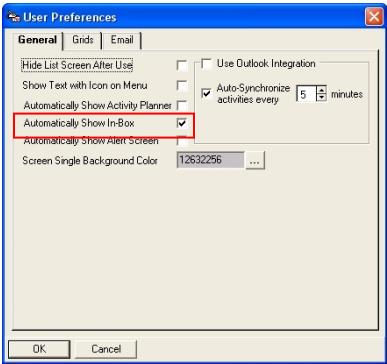
A User Preferences form will be displayed. Check the box to automatically display the In-Box when RBS starts. Uncheck it to not display it when RBS starts.
ThHe In Box form will be displayed. It will be empty the first time it is enabled.
Do a right-mouse click on the grid to display the popup menu. Select the men item "Add another Job to In Box" to select a job to be added to your In Box.
A search form will be displayed for job selection.
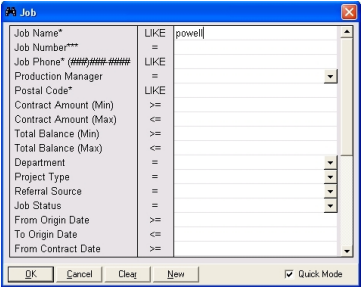
Enter the desired selection criteria and click on the OK button to display the results.
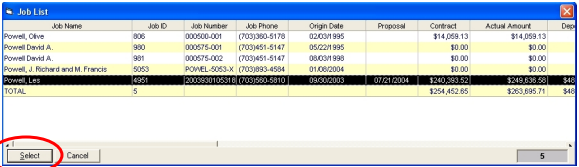
Highlight the job that you want added to the In-Box and click the SELECT button.
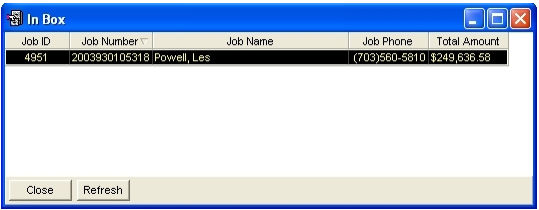
Repeat the procedure to add as many jobs as desired.
Other pop-up items include:
Open Selected Job - Double click on a job in the Inbox to open it or you can highlight the job to open, then right click and click
New Job using contacts of selected job - This feature allows the user to create a new job from the Inbox using the contact information of the selected job.
Add another Job to Inbox - Click here to add another job to the inbox.
Remove Selected Job from Inbox - Click here to remove a job from your inbox. This does not remove the job from RBS, just from the inbox.
Clear ALL jobs from Inbox Click here to clear all the jobs out of your inbox. Print Inbox Click on Print to print a list of the jobs in the inbox Export Inbox to Excel Click on Export to Export a list of the jobs to an Excel file.
You can also display the In-Box using the icon from the main menu.
