Reference Data Setup
Reference Admin can be described as the backbone of RBS. In order to get started you will need to set up records in Reference Admin. It is very important that you set these categories up first, so they will be available for many other functions throughout the program.
Any field that has a drop down box must be set up through Reference Admin. Refer to Appendix A for a short description of each item.
You must be signed on as the Administrator to or have administrator rights perform these functions.
To do this you will need to decide what type of information you want entered in each category that is specific to your company. There are some samples available but you will need to add, edit or delete them to fit your company.
• From the main toolbar in RBS, click on Admin > Reference Admin
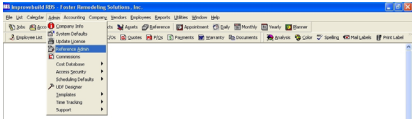
Reference Data -Maintenance form will be displayed.
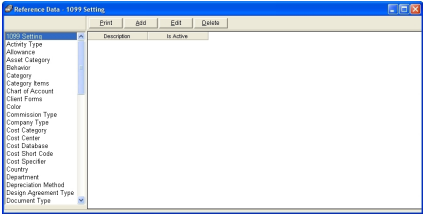
Select the item on the left panel (e.g. Behavior, Activity Type, Allowance, etc) to list the available records in the right panel.
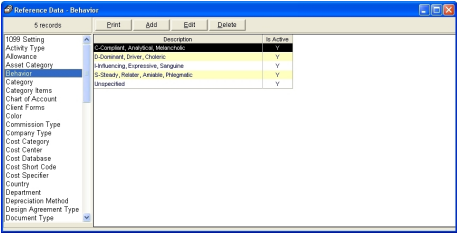
Click on:
PRINT - to print the list of records.
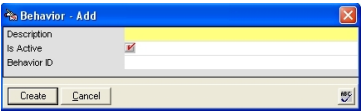
ADD - to create a new record. The ADD form will be displayed. Enter all the required (mandatory entry) field(s) and click on CREATE button to save.
EDIT - to modify the selected record. The EDIT form will be displayed with the exisintg data. Make any desired changed and click on UPDATE to save the changes.
DELETE - to permanently remove the record. The DELETE form will be displayed with the existing data. Click on the DELETE button to permanently remove the record.