Setting Up User Defined Fields
User Defined Fields are used when there is a field you would like to add that is not available by default in RBS.
For example, you are setting up a job to remodel a child’s bedroom in a house. Your main contact will be the homeowner but you would like to be able to remember the name of the child who’s room you are remodeling. We can add a user defined field called “Children” and you can access this from within the job record.
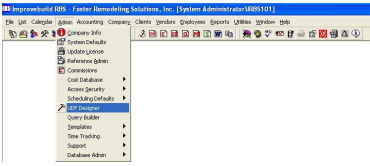
To set up a User Defined Field, from the main menu in RBS, click on Admin > UDF Designer
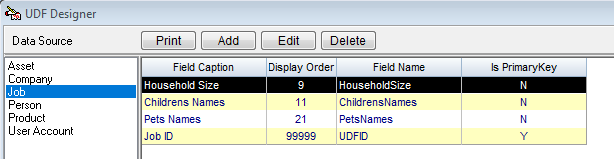
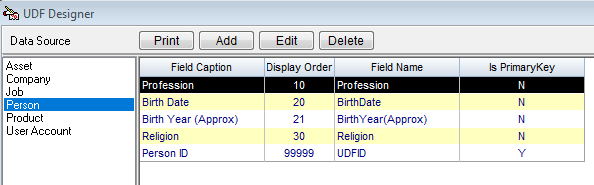
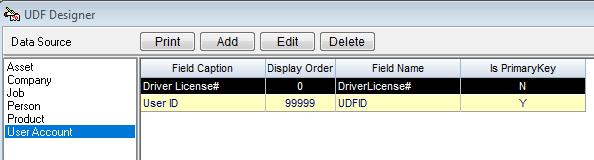
A User-Defined Field Designer (UDF) form will be displayed wth a list of currently\avilable defined fields for each entity in the left panel.
Select the entity that you want the field to be added to using the left panel.
Example: JOB
Example: PERSON
Example: USER ACCOUNT
ADD a User-Defined Field
Click on the ADD button to display the UDF Detail form.
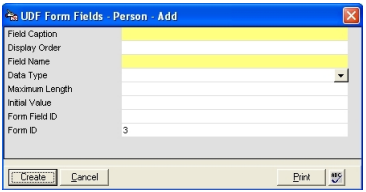
Field Caption - This is the name that you would like to call this field.
Display order - This will determine what order your field will appear. If you type a 1 it will appear first, if you type a 20, it will appear 20th in the list.
Field Name - Use same name as field caption
Data Type - You need to select what type of data will be entered in this field, text, date, decimal…etc.
Maximum Length - This field determines how many characters can be entered in the user defined field, you can enter anything from 1 to 99999.
Initial Value - Leave blank
Form Field ID Leave - blank-computer will generate
Form ID Leave blank - computer will generate
After you have entered the information, click on the CREATE button to save your User Defined Field.
EDIT a User-Defined Field
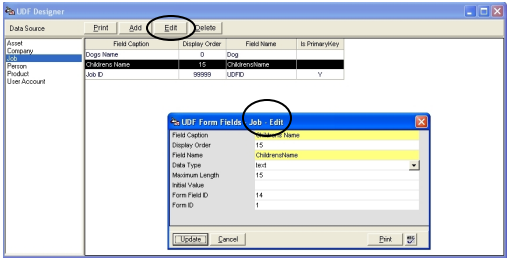
Select the field to edit on the right panel, then click on the EDIT button to display the detail form. Enter the desired changes and click on the UPDATE button to save.
DELETE a User-Defined Field
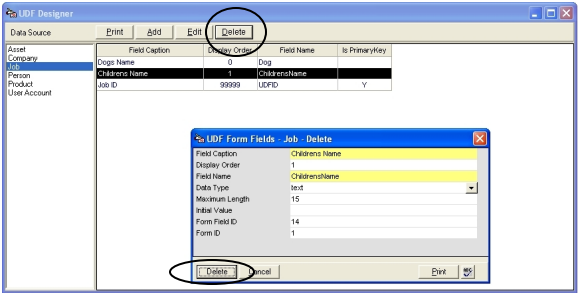
Select the field to edit on the right panel, then click on the DELETE button to display the detail form. Click on the DELETE button.
RBS will prompt for a delete confirmation.
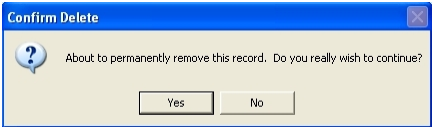
Click YES to permanently remove the record.
WARNING: this will affect all records that currently use this User-Defined Field. Use the DELETE function wil CAUTION.
How to Use a User-Defined Field
A User-Defined Field can be added to the desired form using the steps below:
Job Example
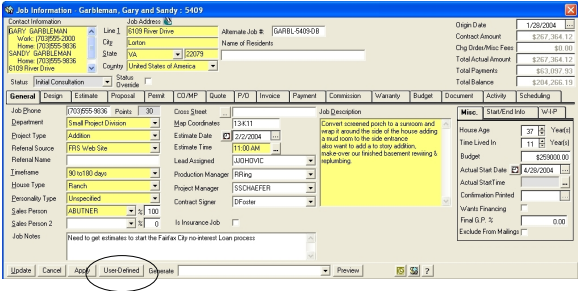
Click on the USER-DEFINED button to dispay the detail screen.
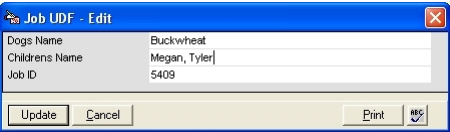
Make the desired changes and click on the UPDATE button to save.