Setting Up Cost Database
This is where you will enter all of your estimate items so they will be available to you when you do an estimate.
You will not be able to set up an estimate without having items available in the database.
You can enter items separately into your database or you can have an existing cost database loaded into RBS.
RBS has been designed to use the Home Tech database. These examples are based on estimate items from the Home Tech database.
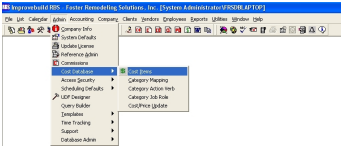
Th Cost Item List will be displayed showing the categories in the included sample database.
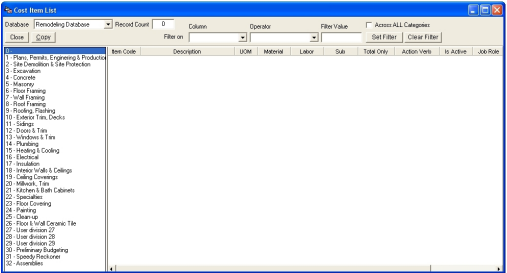
Click on the DATABASE dropdown to select from the list of database(s) that has been configured.
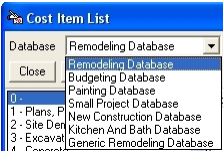
Click on a category on the left panel to see all the cost items.
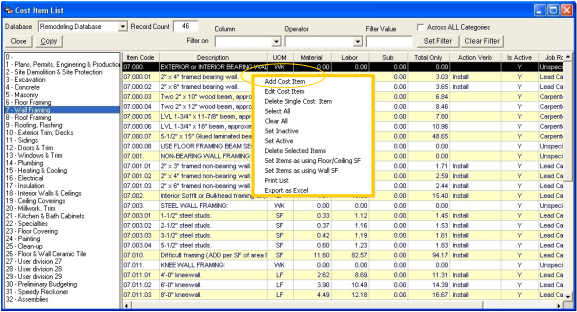
Do a right-mouse click on the list to display the popup menu.
ADD Cost Item
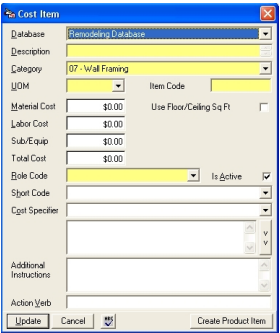
Enter all the required fields and any optional fields for the new cost item. Click on UPDATE button to save the record.
Database - Click on the drop down arrow to choose which database this cost item should go into.
Description - Enter a descriptive description of the Cost Item.
Category - Click on the drop down arrow to choose a category for the cost item to appear in.
UOM (Unit of Measure) - Click on the drop down arrow to select a Unit of Measure for your cost item.
Item Code - Enter an Item Code for your item. This will depend on how your database is set up. In the example below we are using item number 06.116. 06 = the category number 116 = the 116th item in the list You can enter item codes based on your database items.
Material Cost - Enter a Material cost for your item.
Labor Cost - Enter a Labor cost for your item.
Sub/Equip - Enter a Subcontractor or Equipment cost for your item.
Total Only - Enter a Total only cost for your item.
Role Code - Click on the drop down box to choose a Role Code for the item. This is the type of worker who would do this activity.
Is Active - Check in this box if you would like this item to appear in the database. If this is NOT checked the item will still be in the database but it will not appear on the list when doing an estimate.
Short Code - This is a short description of the cost item.
Cost Specifier - This is a longer description of the item which will appear as you glide your cursor over the items in an estimate.
Additional Instructions - If there are additional instructions you would like to add to go along with this item, this can be added here.
Action Verb -This is a word or phrase that will be used for Proposal generation at a later time. You will use a descriptive term to describe the type of cost item. For example if you are entering 2x8 wooden beams, you may want to enter “install” as your action verb. Then later when the proposal is generated, the entry will read as “Install 2x8 wooden beams…”.
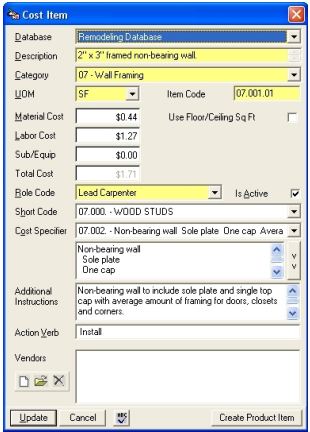
Click on the UPDATE button tosave the cost item.
EDIT Cost Item
In order to Edit an item you will first need to make sure that you have the authority to Edit. If the function is greyed out, then you do not have the rights to perform this function. See your Administrator. Click on the line item that you would like to Edit. Then right Click to show a sub menu….
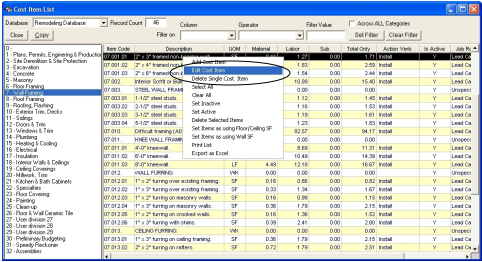
Click on Edit Cost Item.
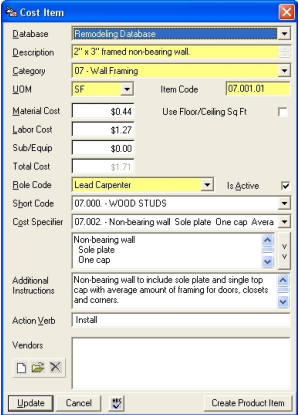
Make any desired changes and click onthe UPDATE button to save.
DELETE an Item
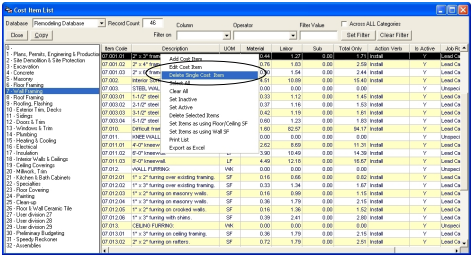
Select a cost item from the list and click on the popup menu option to delete.
In order to Delete an item you will first need to make sure that you have the authority to Delete. If the function is grayed out, then you do not have the rights to perform this function. See your administrator.