Notes Tab
In an effort to keep all office staff on the same page, RBS has the capability to enter any type of notes on a job. Your sales department may want to document any conversations had with the client to keep track of job details. Or, your receptionist may want to make a note of a particular point of interest.
The notes tab was designed to track any proceedings so each member of your staff knows what has been done on each job.
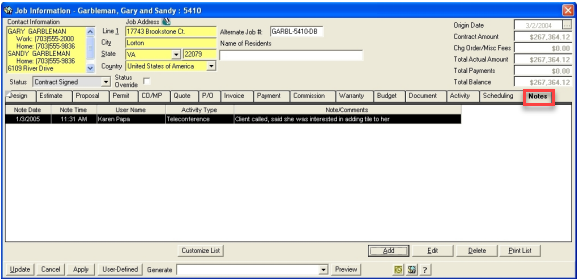
ADD a note
Click on the ADD button to create a new note.
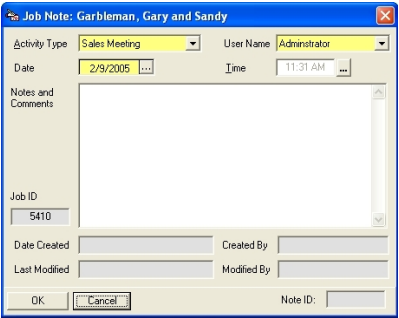
Activity Type - Click on the drop down to choose a heading for the note. These can be added or edited in Reference Admin.
User Name - Click on the drop down to select a User Name.
Date - The date will default to todays date, but the user can enter an alternative date, if needed. Time The time will default to the current time, but the user can enter an alternative time, if needed.
Notes/Comments - Enter any notes or comments
Job ID - System generated.
Date Created - System generated.
Created By - System generated.
Last Modified - System generated.
Modified By - System generated.
EDIT a note
Select a record on the list and click on the EDIT button to display the note details. Make all desired changes and click on the OK to save.
DELETE a note
Select a record pm the list and click on the DELETE button to display the note details. Click on the DELETE button to delete.